Most common printer problems can be fixed in a few clicks: restart the printer and computer, check the connection, clear the print queue and update the printer driver. Those four steps solve a surprising share of “printer not printing” complaints. When they do not, the eight targeted fixes below cover the issues people run into most often on Windows 10, Windows 11 and mobile devices, from ghost paper jams to “cartridge not recognized” warnings.
Try these quick checks first
Before digging into settings, run through this short checklist. It takes about two minutes and often saves a lot of frustration.
- Make sure the printer is on, out of sleep mode and showing no blinking error lights.
- Confirm there is paper in the tray and ink or toner in every cartridge.
- Turn the printer off, unplug it for 30 seconds, then turn it back on. Restart the computer too.
- Check that you are sending the job to the right printer, since many PCs list several copies of the same device.
- Open the print queue and cancel any stuck jobs.
8 tips to solve common printer problems
1. Windows will not add your printer
If your computer cannot find the printer, add it manually. In Windows 10, go to Settings > Devices > Printers & scanners and click Add a printer or scanner. In Windows 11, go to Settings > Bluetooth & devices > Printers & scanners and click Add device. Wait for the scan, select your model and print a test page.
If it still does not appear, click The printer that I want isn’t listed (or Add manually) and add it by its IP address, which you can usually find on the printer’s network settings screen or by printing a network configuration page. For USB printers, try a different USB port and avoid unpowered hubs.
2. Paper jams and ghost jams
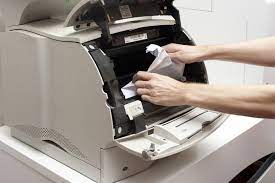
A real jam means paper is stuck somewhere in the paper path. A ghost jam means the printer reports a jam when nothing is visibly stuck. Both are handled the same way:
- Turn the printer off and unplug it.
- Open every access door and the rear panel, then gently pull out any paper in the direction it normally travels.
- Use a flashlight to look for small torn scraps, labels or paper clips.
- Wipe the pickup rollers with a lint-free cloth lightly dampened with water, since dusty or glazed rollers cause misfeeds.
- Reload the tray without overfilling it, fan the stack first and slide the paper guides snugly against the edges.
Also check that the paper type and size in your print dialog match what is loaded. Printing on heavy card stock with a “plain paper” setting is a common cause of repeat jams.
3. You cannot print from your phone
Most wireless printers support mobile printing without extra software. iPhones and iPads use AirPrint, which works with compatible printers on the same Wi-Fi network: tap the share icon, choose Print and select the printer. Android phones use the built-in print service or the manufacturer’s plugin, found under Settings > Connected devices > Printing on many models.
If the phone does not see the printer, make sure both are on the same network (not a guest network), then try the manufacturer’s app, such as HP Smart, Canon PRINT or Epson Smart Panel. Many printers also support Wi-Fi Direct, which creates a direct connection without a router, and some offer an email-to-print address for printing remotely.
4. Wi-Fi printing is painfully slow
Slow wireless printing usually comes down to signal strength or large files. Move the printer closer to the router or away from thick walls, microwaves and cordless phone bases. If your router broadcasts separate 2.4 GHz and 5 GHz networks, note that many printers only support 2.4 GHz, which has longer range but less speed. Printing high-resolution photos or large PDFs will always take longer, so choose “draft” or “normal” quality for everyday documents. A Wi-Fi extender or mesh node near the printer can help in larger homes. If you suspect the network itself, running a quick ping test to the printer’s IP address will show whether packets are dropping.
5. No error, but nothing prints
When the printer looks fine but jobs never come out, the problem is often a stuck queue or a paused printer. On Windows, open Printers & scanners, select the printer and choose Open print queue. Cancel all documents, and make sure Pause printing and Use printer offline are not checked.
If jobs still will not clear, restart the Print Spooler service: press Windows + R, type services.msc, find Print Spooler, right-click it and choose Restart. For wired printers, reseat the USB or Ethernet cable at both ends. For wireless printers, confirm the printer still has an IP address on your network, since it may have dropped off after a router restart.
6. Printer driver errors
The driver is the software that lets your computer talk to the printer. A missing, corrupt or outdated driver can cause “driver unavailable” messages, garbled output or a printer that shows up but will not print. The safest fix is to download the latest driver or full software package directly from the manufacturer’s support page for your exact model and version of Windows.
If a driver is badly corrupted, remove the printer from Printers & scanners, restart, and then install the fresh driver before reconnecting. Canon owners often ask about this process, and this guide on how to install the canon printer driver on windows 10 walks through the manual and automatic options. Windows Update can also deliver drivers for many printers, so check Optional updates under Windows Update settings. Some people prefer driver updater utilities, but stick to reputable software and create a restore point before letting any tool change system drivers.
7. The printer keeps dropping off Wi-Fi
A printer that connects and then disappears is often getting a new IP address each time the router restarts. Log in to your router and reserve a fixed IP address for the printer (often called DHCP reservation). Also check for firmware updates for both the printer and router, since manufacturers regularly fix connectivity bugs. If you recently changed your Wi-Fi password or router, you will need to rerun the printer’s wireless setup wizard from its control panel or app. Turning off aggressive power-saving or “deep sleep” modes on the printer can help too.
8. “Cartridge not recognized” or “non-genuine” warnings
Printers use a small chip on each cartridge to track ink levels and confirm compatibility. Refilled or third-party cartridges sometimes trigger a warning. Try these steps:
- Remove the cartridge and gently wipe the copper contacts with a dry, lint-free cloth.
- Make sure any protective tape has been removed and the cartridge clicks firmly into place.
- If the printer shows a message with an option to continue, you can usually accept it and keep printing, although ink level readings may be unavailable.
- Be aware that some firmware updates block certain third-party cartridges, so read the release notes before updating if you rely on them.
Quick reference: symptom and fix
| Symptom | Most likely cause | First fix to try |
|---|---|---|
| Printer shows as offline | Network change or “use offline” setting | Restart printer and router, uncheck offline mode |
| Jobs stuck in queue | Print Spooler hang | Cancel all jobs and restart the spooler |
| Streaks or faded prints | Clogged nozzles or low toner | Run the head cleaning utility or replace toner |
| Repeated jams | Worn rollers or wrong paper setting | Clean rollers and match paper type |
| Phone cannot find printer | Different network or guest Wi-Fi | Join the same network and use the maker’s app |
How to prevent printer problems
A little maintenance keeps most printers running for years. Print at least a page or two every week or so on inkjet printers so the nozzles do not dry out. Keep the printer in a dust-free spot away from direct sunlight and heaters. Store paper flat in a dry place, since humid paper curls and jams. Install firmware updates from the manufacturer when they fix bugs you care about, and keep your computer’s operating system current. If you are setting up a new workspace, our list of items to buy when starting a new home office covers the other equipment worth getting right from day one.
When nothing works, the printer’s built-in diagnostics are the next step. Most models can print a self-test or status report that shows error codes, ink levels and network details. If a hardware fault is confirmed and the printer is out of warranty, compare the repair quote with the price of a new model, since replacing an older inkjet is sometimes cheaper than fixing it.
Frequently asked questions
Why does my printer say it is offline?
Usually the computer has lost contact with the printer after a network change, sleep mode or IP address change. Restart both devices, uncheck “Use printer offline” and reserve a fixed IP for the printer.
How do I clear a stuck print queue in Windows?
Open the print queue and cancel all documents. If they will not clear, restart the Print Spooler service from services.msc and try again.
Where should I download printer drivers?
From the printer manufacturer’s official support site for your exact model and operating system, or through Windows Update optional updates.
Why does my printer report a jam when there is no paper stuck?
Small scraps, dirty rollers or a misaligned paper guide can trigger a ghost jam. Power off, check every door with a flashlight, clean the rollers and reload the tray.
Can I keep using a cartridge that shows a non-genuine warning?
Often yes. Many printers let you accept the message and continue, though ink level readings may not work and some firmware updates can block certain third-party cartridges.